
Accessory guide · NexWave Games
Buying a used Switch dock: which connections and functions should you check?
An extra dock beside a second television can be convenient: move the Switch and continue playing. A tidy-looking dock does not necessarily provide stable video, though. A stand, charging holder and TV dock are also different products. Establish what is offered, then test its functions with a working console. A photograph of the green light alone tells you too little.
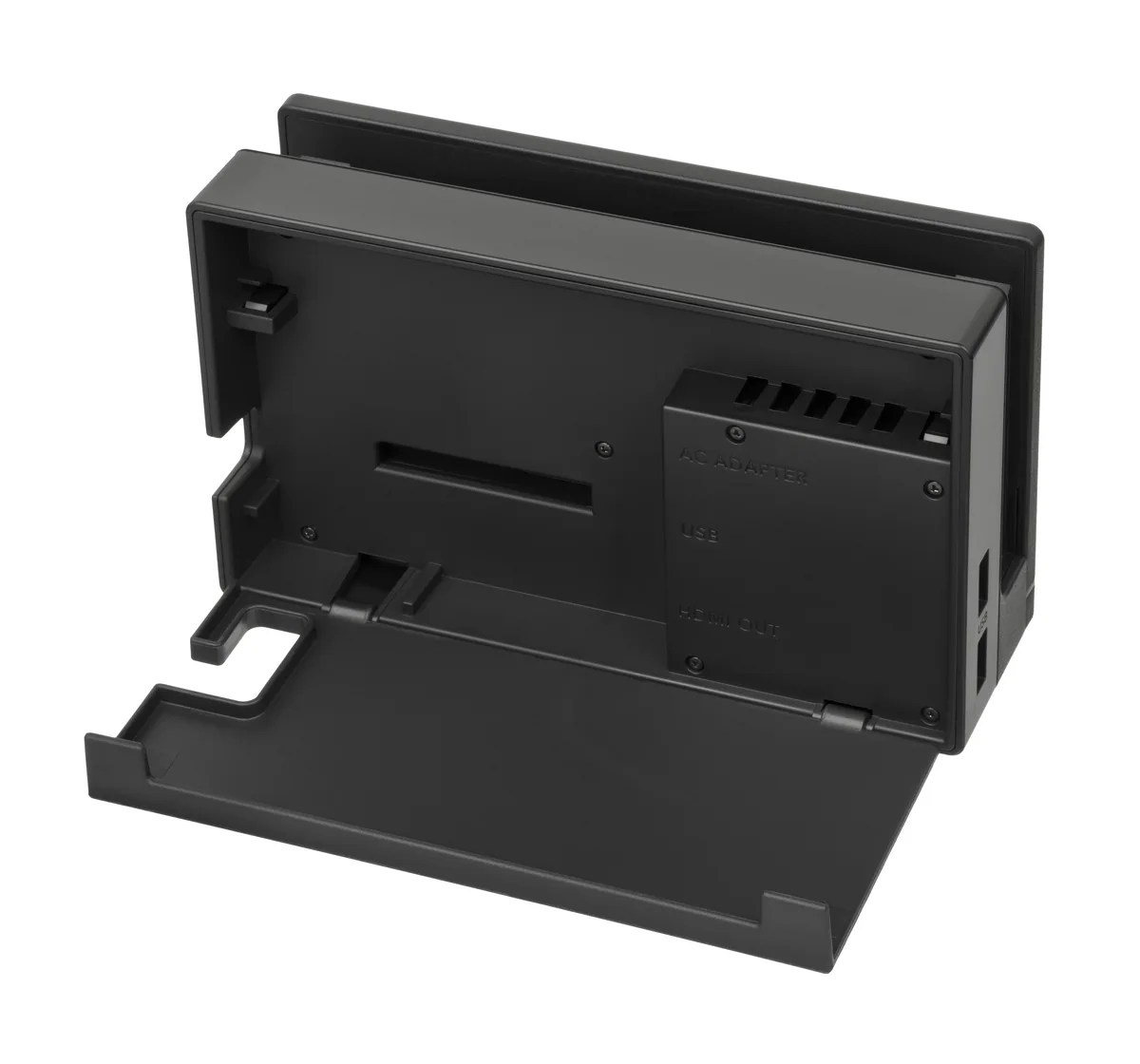

Does this dock match your Switch?
The standard Nintendo Switch and Nintendo Switch – OLED Model support TV output through a suitable dock. Nintendo states that both work with the LAN-port dock when using the required system software. Switch Lite does not support TV mode. Another stand, USB-C cable or dock does not add that missing function. Do not buy a TV dock for Lite expecting television play.
Check the device’s model number and corresponding specifications. The original and OLED docks differ in connections: the OLED dock includes a LAN port for wired networking. Nintendo Switch 2 has its own dock; do not assume it is the same accessory. If a listing only says Switch dock, ask for its label and a clear rear photograph before deciding compatibility.
Inspect plugs, housing and included items
Check the USB-C connection where the console sits. It should not be visibly bent, and the console should lower without force. Inspect HDMI, USB and any LAN port for damage or looseness. Check the cable cover if that matters to you. A surface scratch is different from a socket moving when a cable is inserted.
Ask which power adapter and HDMI cable are included. A dock without them may be useful, but you need suitable replacements. A USB-C charger capable of charging a phone does not necessarily support the required TV setup. Follow Nintendo’s and the dock manufacturer’s power requirements. Prefer a demonstration with the adapter and cable you will actually receive, rather than equipment excluded from the sale.
Test more than charging
Follow the manual to connect the dock to a working television, using a Switch supporting TV mode. Check picture and sound and play for a while instead of displaying only the HOME Menu. Watch for interruptions or repeated black screens. Check charging as well. When problems occur, comparing a known-working HDMI cable or power supply helps identify the cause without opening the dock.
Test connections you intend to use, such as a supported USB accessory or the OLED dock’s LAN connection. Ask about previous repairs and visible modifications. A matching set with demonstrated video, charging and ports provides more information than the word original alone. With the correct model and a test of included equipment, you can judge whether it suits your second-TV setup.