
Accessory guide · NexWave Games
Can you use a Pro Controller with a Switch Lite?
Your Switch Lite is on the table and you would rather play with a conventional controller. Can the Nintendo Switch Pro Controller connect to it? Yes, wirelessly. There are just a few practical differences from a standard Switch that are useful to know before ordering a controller.
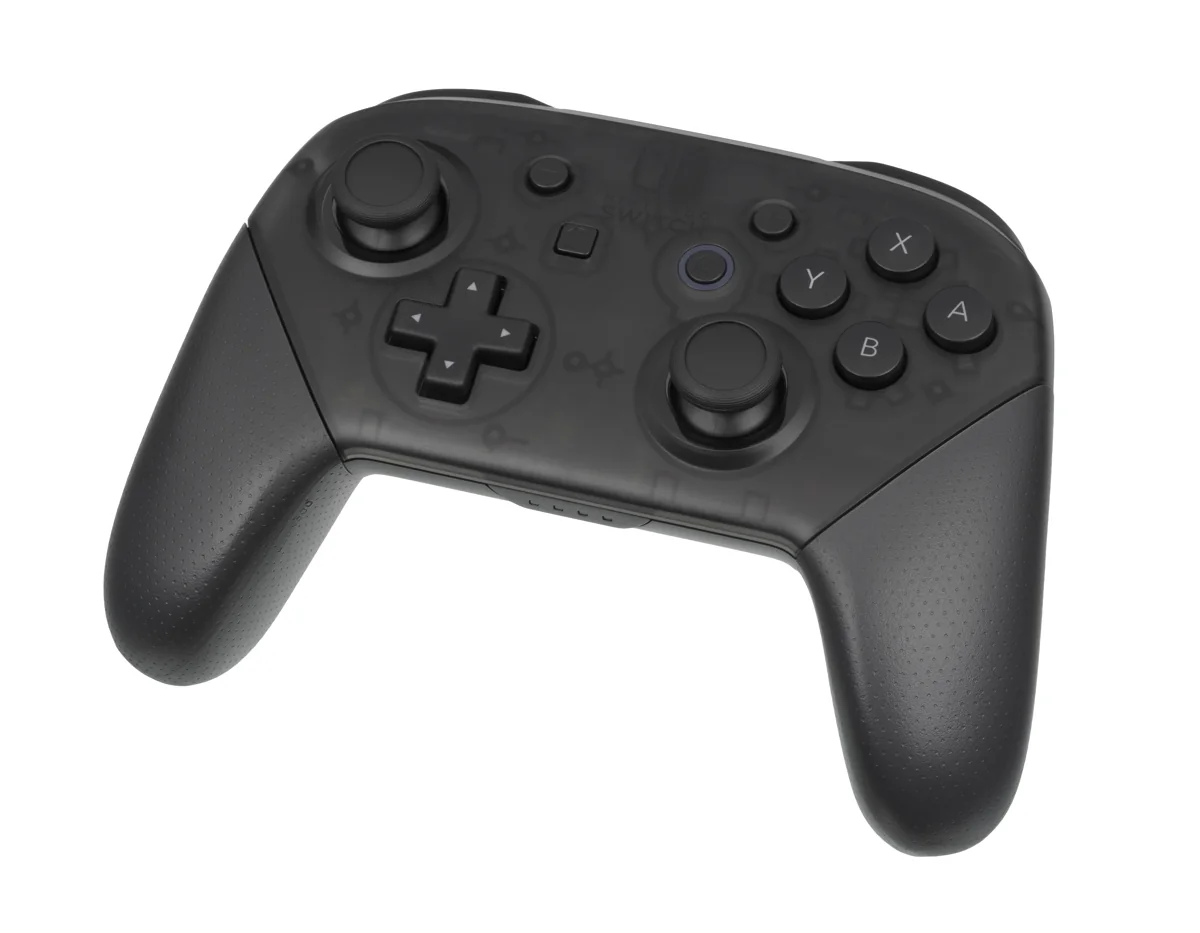

Wireless pairing works
Nintendo supports wireless pairing of a Pro Controller with Nintendo Switch Lite. Open the controllers menu on the console and select the option to change grip or order. Then use the Pro Controller's sync button following Nintendo's pairing instructions. Once connected, you can use it in games that support this type of control.
Make sure it is a Nintendo Switch Pro Controller. A Wii U Pro Controller is a different product; a similar name does not make it a Switch controller. Alternative controllers also vary: some only work by cable or require their own receiver. In a second-hand listing, check the manufacturer, model name and how the controller connects.
A separate controller does not turn Lite into a TV console
Switch Lite continues to use its own screen. Pairing a Pro Controller does not add TV output or replace the missing docking function. Put Lite on a stable stand when playing from a little farther away. It has no folding stand like some other Switch models. Budget for a suitable holder if you do not want to keep leaning it against something.
Remember the small screen too. Text that is easy to read in your hands becomes less clear on a table farther away. For one player at close range, that can work well. Gathering several players around a small screen takes more preparation. Also check each game's required number of controllers and whether it supports the way you want to play together.
Check pairing, buttons and charging
Have a used Pro Controller actually connect to a Switch and launch a supported game. Test both sticks, the directional buttons, action buttons and shoulder buttons. Release the sticks and check that the controls return to centre. A photo of lit indicators only shows that something powers on; it does not prove that every input works properly. Ask about any previous repairs too.
Finally, check that the battery charges and a suitable cable is included. Use a charged controller for wireless play. Nintendo specifies a separate licensed accessory for certain wired uses on Lite, so do not expect any USB cable to provide the same function directly. The simplest setup is a working wireless Pro Controller, a stable stand and a game that supports the controller.
When testing, consider your setup at home too: can you read the text with the Lite on a stand? A comfortable controller is little help if you then have to keep leaning forwards. Try roughly the same viewing distance you use during your own gaming sessions.